
Checklists
Copy Link
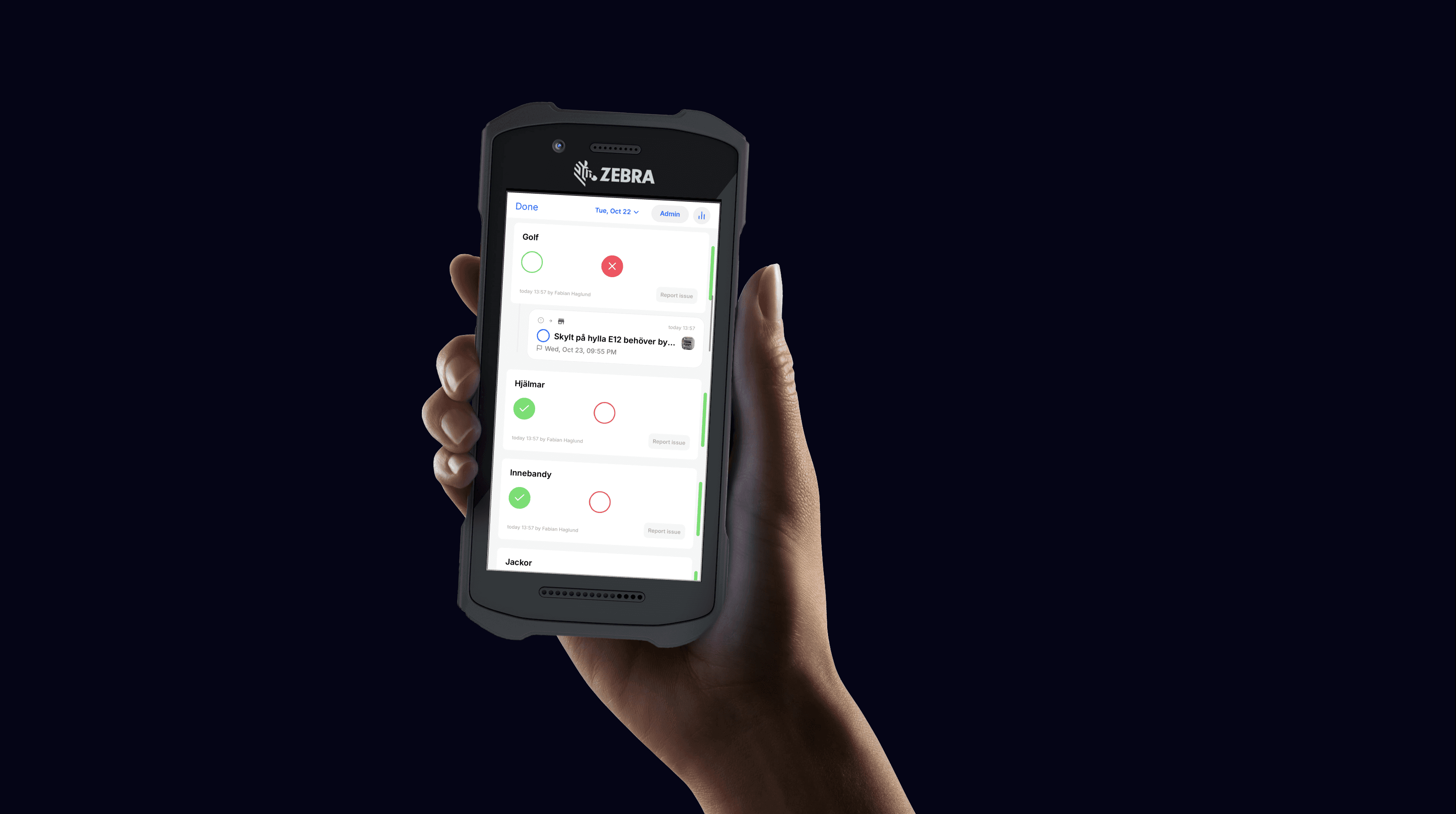
Use Checklists to conduct a Floorwalk or perform an inspection. Any identified issues are automatically sorted to the correct team. Take a picture, assign it to a colleague, and set the priority level
Create Floorwalk
⚠️ To make changes to Workflows, you need “Operations Manager” or “Superadmin” permissions.
If you want to ensure that the store is sales-ready and meets the required standards, setting up a recurring store check can be a great idea.
1. Select the relevant team.
2. Click on ⚙️ in the top-right corner and choose Edit Team Schedule.
3. Select the frequency that fits your needs and click +.
4. Provide a title for the checklist, set the scheduling details, and select Checklist as the type.
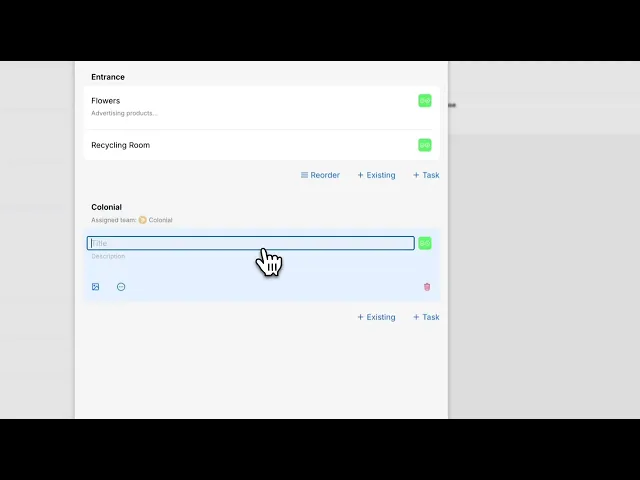
5. Add the checkpoints to be included in the store check.
6. You can also create sections, add descriptions, and include images to make the checklist detailed and effective.
⚠️ För att göra ändringar i Körschemat behöver du ha behörigheten “Driftansvarig” eller “Superadmin”.
Vill man kontrollera att butiken är säljklar och håller rätt standard så kan ett återkommande butiksvarv vara en god idé.
Välj först den ansvariga avdelningen. Klicka på ⚙️ i det övre högra hörnet och välj Körschema. Klicka på + och ge checklistan en titel, vilken schemaläggning och välj Checklista. Skriv in de kontrollpunkter som ska vara med. Det går att skapa sektioner, lägga till beskrivning och bild.
Se videon nedan för hur man skapar ett butiksvarv.
Duplicate routines & checklists
⚠️ To make changes in the team schedule, “Operations Manager” or “Superadmin” access is required.
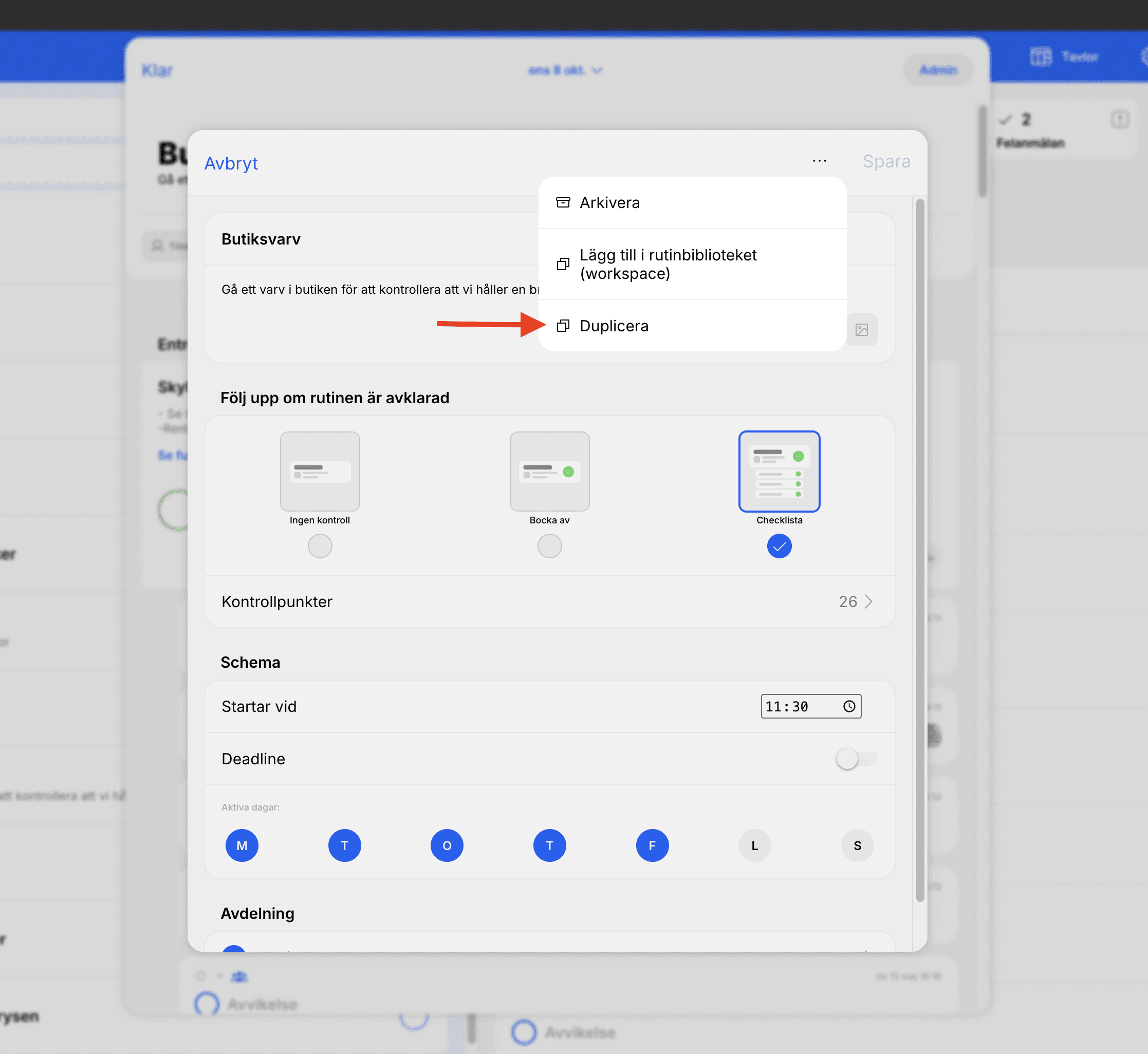
Click on the task or checklist you want to duplicate. In the top right corner, there is an “Admin” button. Then click on the three dots in the upper right corner → Duplicate.
⚠️ För att göra ändringar i Körschemat behöver du ha behörigheten “Driftansvarig” eller “Superadmin”.
Klicka på uppgiften eller checklistan du vill duplicera. I det högra hörnet finns en "Admin" knapp. Klicka sedan på de tre pickarna uppe i det högra hörnet → Duplicera.
Reorder Tasks and Sections in a Checklist
Reordering Tasks in a Checklist
1. Open the checklist you want to edit.
2. Click the Admin button and select Tasks.
3. Click on Reorder to adjust the order of tasks.
Reordering Sections in a Checklist
1. Open the checklist you want to edit.
2. Click the Admin button and select Tasks.
3. Click on the three dots in the top-right corner and choose Reorder Sections.
Gå först till checklistan man vill redigera. Klicka på Admin-knappen och sedan kontrollpunkter. Klicka på "ordna".
Ändra ordning på sektioner i checklista
Gå först till checklistan man vill redigera. Klicka på Admin-knappen och sedan kontrollpunkter. Klicka på de tre prickarna uppe i högra hörnet och sedan ordna sektioner.
How to use and adapt a Routine template
⚠️ This feature is available for stores that are part of an organization in StoreSprint.
If you receive tasks or information via StoreSprint from your management, it means your store is part of an organization.
A routine template is a pre-structured checklist in StoreSprint. It provides a ready-made foundation that helps you get started quickly, while still allowing you to customize it to fit your local needs.
Routine templates are often used for recurring tasks, such as Floorwalks. Starting from a template saves time, ensures consistency, and makes it easy to adjust checkpoints or descriptions to reflect how your team actually works.
⚠️ Den här funktionen är tillgänglig för butiker som är en del av en organisation i StoreSprint. Om ni får uppgifter eller information skickade till er via StoreSprint från er ledning – då tillhör ni en organisation i systemet.
En rutinmall är en färdig struktur för en checklista i StoreSprint. Den fungerar som en grund som gör det enkelt att komma igång, samtidigt som ni kan anpassa innehållet efter era lokala behov.
Rutinmallar används ofta för återkommande arbetsmoment, till exempel Butiksvarv. Genom att börja med en mall sparar ni tid, säkrar enhetlighet och kan snabbt justera kontrollpunkter eller beskrivningar så att de speglar hur ni faktiskt arbetar på er avdelning.
Analyse checklist
⚠️ Analysis is only available on mobile devices.
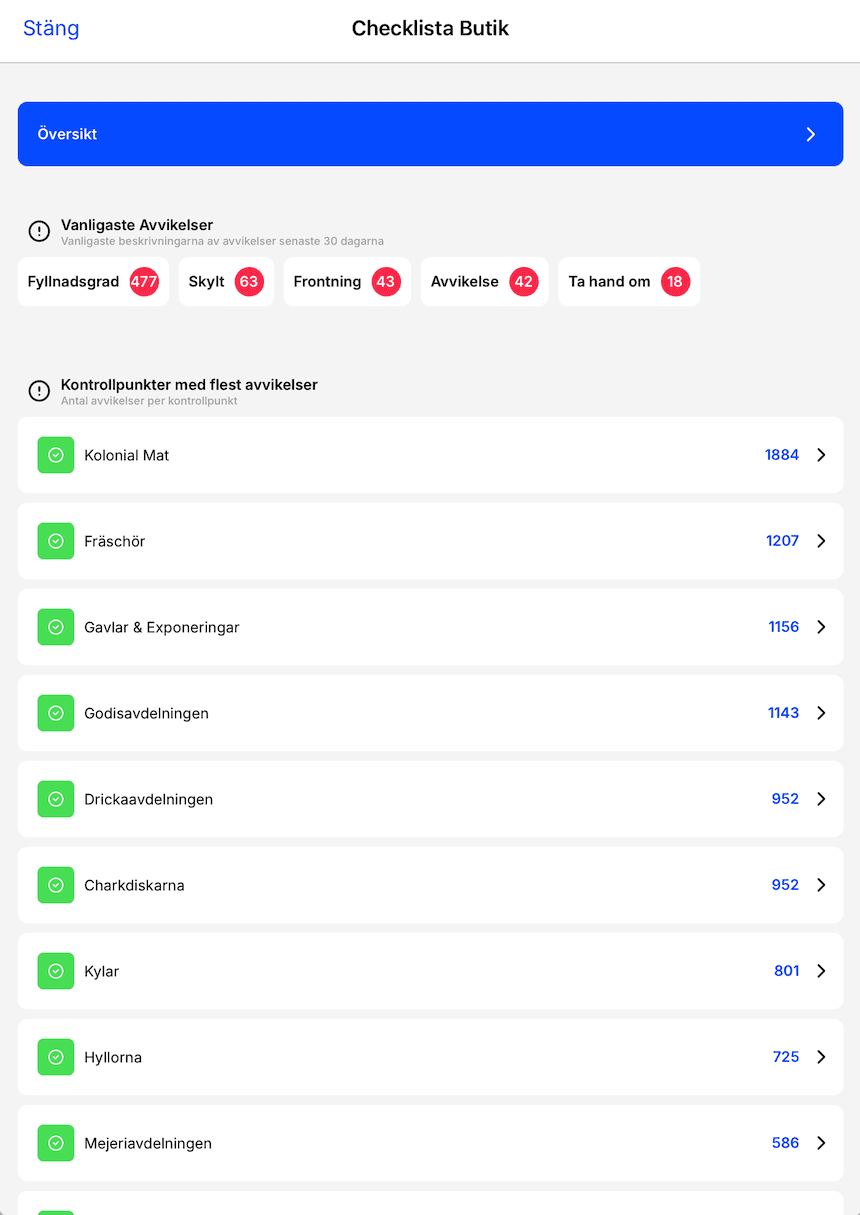
Time to review your routines? It’s helpful to know where your operations deviate the most. With StoreSprint’s built-in analytics tool, you can get a quick and clear overview.
1. Locate the checklist you want to analyse, such as “Store Check.”
2. Open the checklist and click on the three bars in the top-right corner.
3. Access insights to identify key areas of improvement.
⚠️ Analys finns endast tillgängligt på mobila enheter.
Dags att se över rutinerna? Då är det intressant att veta vart i verksamheten vi avviker mest. Med hjälp av StoreSprints inbyggda analysverktyg får man en snabb och begriplig överblick.
Börja med att leta reda på den checklista du vill analysera, exempelvis "Butiksvarvet", klicka upp checklistan och sedan på de tre staplarna uppe i det övre högra hörnet.