
Support

Eng

Checkout Mode

Copy Link

Copy Link

Use Checkout Mode to consolidate all routines, checklists, PLU codes, support documents, and other tasks for the checkout area on a tablet at the register!

How does the PLU library work?

The PLU library can be accessed in a team with checkout mode enabled, from a tablet, mobile device, or computer.

Search and filter:

You can easily search for products or filter by category.

Edit, add, or remove products:

1. Click on Edit.

2. Choose to add a new product or edit an existing one.

3. Provide the following information:

• Name

• Image (take a photo with your camera or upload an existing one)

• PLU

• Optional EAN code

• Select a category

4. Click Save to complete the changes.


The PLU library makes it easy to organize and manage products efficiently.

Man kommer åt PLU-biblioteket i en avdelning med aktiverat kassaläge från surfplatta, mobil och dator. Det är lätt att söka efter produkter eller filtera på kategori. Vill man ändra, lägga till eller ta bort en produkt så gör man det genom att klicka på ändra. Välj att lägga till ny produkt eller ändra befintlig produkt. Lägg till namn, bild (direkt med kameran eller ladda upp befintliga bilder), PLU, eventuellt EAN-kod, välj en kategori och klicka på spara.
How does the PLU library work?

The PLU library can be accessed in a team with checkout mode enabled, from a tablet, mobile device, or computer.

Search and filter:

You can easily search for products or filter by category.

Edit, add, or remove products:

1. Click on Edit.

2. Choose to add a new product or edit an existing one.

3. Provide the following information:

• Name

• Image (take a photo with your camera or upload an existing one)

• PLU

• Optional EAN code

• Select a category

4. Click Save to complete the changes.


The PLU library makes it easy to organize and manage products efficiently.

Man kommer åt PLU-biblioteket i en avdelning med aktiverat kassaläge från surfplatta, mobil och dator. Det är lätt att söka efter produkter eller filtera på kategori. Vill man ändra, lägga till eller ta bort en produkt så gör man det genom att klicka på ändra. Välj att lägga till ny produkt eller ändra befintlig produkt. Lägg till namn, bild (direkt med kameran eller ladda upp befintliga bilder), PLU, eventuellt EAN-kod, välj en kategori och klicka på spara.

Edit product inventory

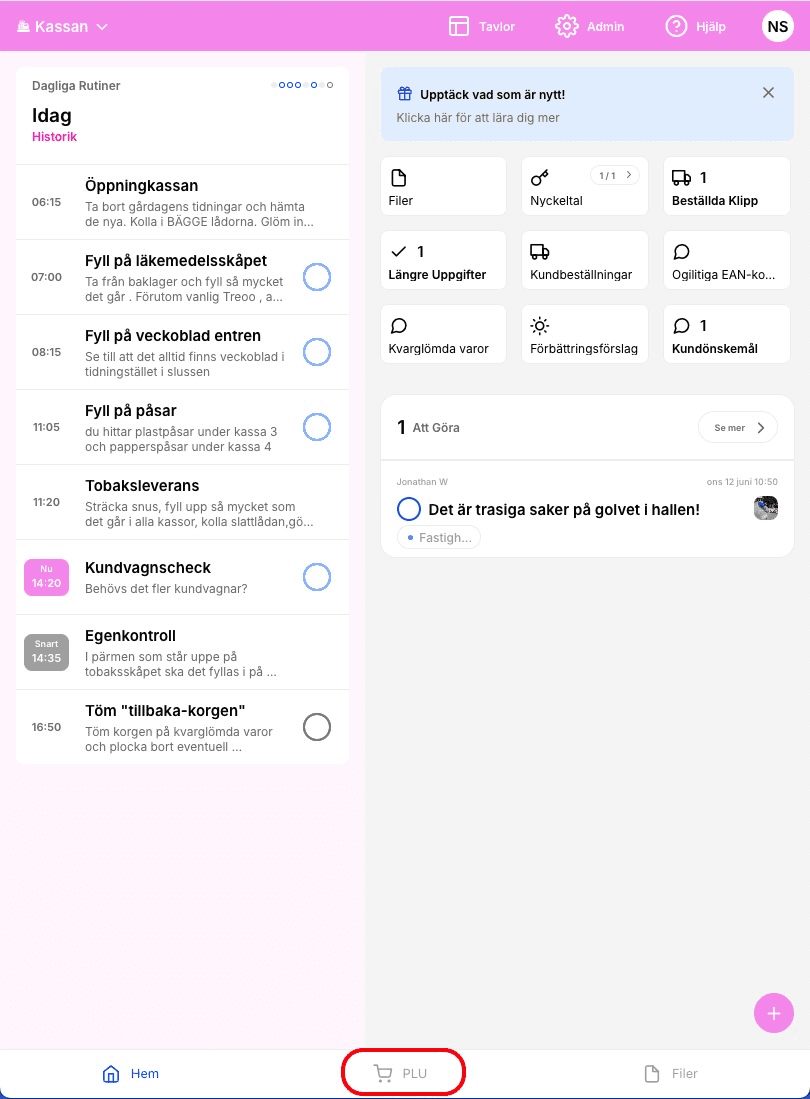
To, for example, add an image, add an EAN code, or remove a product from the PLU library, you need to go to a Team that has the Checkout mode enabled. This is usually the Team that includes the checkout area.

At the bottom, you’ll find PLU — then click Edit in the top left corner to enter a mode where you can add, edit, or remove products. Create a new product or click an existing one to edit details such as:

  • Name

  • Image

  • PLU code

  • EAN code / Barcode

  • Temporarily hide product

  • Change category

För att t.ex. lägga till bild, lägga till EAN-kod eller ta bort en produkt ur PLU-biblioteket behöver man gå till en Avdelning som har Kassaläget. Oftast är det avdelningen som innefattar kassan.

Längst ner hittar man PLU, klicka sedan på Ändra uppe till vänster för att hämna i ett läge där man kan lägga till, redigera och ta bort produkter. Skapa en ny produkt eller klicka på en befintlig för att göra redigera saker som

  • Namn

  • Bild

  • PLU-kod

  • EAN-kod / Streckkod 

  • Dölj produkt temporärt

  • Ändra kategori

Edit product inventory

To, for example, add an image, add an EAN code, or remove a product from the PLU library, you need to go to a Team that has the Checkout mode enabled. This is usually the Team that includes the checkout area.

At the bottom, you’ll find PLU — then click Edit in the top left corner to enter a mode where you can add, edit, or remove products. Create a new product or click an existing one to edit details such as:

  • Name

  • Image

  • PLU code

  • EAN code / Barcode

  • Temporarily hide product

  • Change category

För att t.ex. lägga till bild, lägga till EAN-kod eller ta bort en produkt ur PLU-biblioteket behöver man gå till en Avdelning som har Kassaläget. Oftast är det avdelningen som innefattar kassan.

Längst ner hittar man PLU, klicka sedan på Ändra uppe till vänster för att hämna i ett läge där man kan lägga till, redigera och ta bort produkter. Skapa en ny produkt eller klicka på en befintlig för att göra redigera saker som

  • Namn

  • Bild

  • PLU-kod

  • EAN-kod / Streckkod 

  • Dölj produkt temporärt

  • Ändra kategori

Activate Checkout Mode

To activate checkout mode in StoreSprint, contact us at support@storesprint.app.


För att aktivera kassaläget i StoreSprint, hör av er till oss på support@storesprint.app


Activate Checkout Mode

To activate checkout mode in StoreSprint, contact us at support@storesprint.app.


För att aktivera kassaläget i StoreSprint, hör av er till oss på support@storesprint.app


Barcodes

⚠️ To make changes in the PLU library, you need “Manager” or “Admin” permissions.

StoreSprint supports both EAN and Code39 barcode formats.

If you want to display barcodes for individual items, you can do so by clicking on "Audit" in the top right corner.

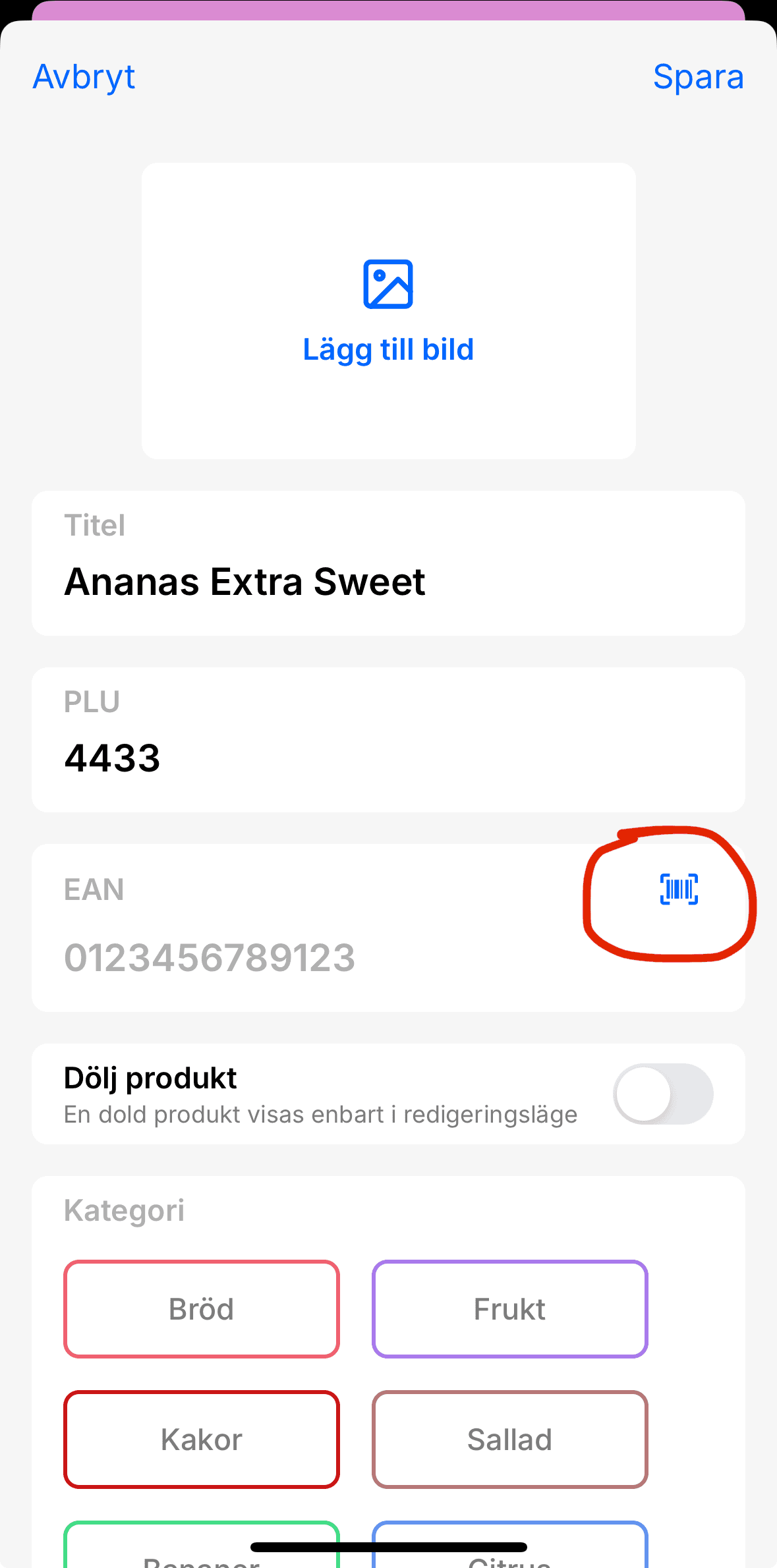
To add a barcode to a product, first click Edit. Then click on the product and enter your code. The easiest way is to use the built-in barcode scanner!

⚠️ För att göra ändringar i PLU-biblioteket behöver man ha behörigheten “Personal+” eller “Admin”

StoreSprint stöder både EAN och Code39 formatet.

Vill man visa streckkoder för styckvaror vid t.ex. avstämning så går det genom att klicka på avstämning i det övre högra hörnet.

För att lägga till en streckkod till en produkt behöver man först klicka på Ändra. Klicka sedan på produkten och fyll i din kod. Smidigast är att använda sig av den inbyggda streckkodsläsaren!
Barcodes

⚠️ To make changes in the PLU library, you need “Manager” or “Admin” permissions.

StoreSprint supports both EAN and Code39 barcode formats.

If you want to display barcodes for individual items, you can do so by clicking on "Audit" in the top right corner.

To add a barcode to a product, first click Edit. Then click on the product and enter your code. The easiest way is to use the built-in barcode scanner!

⚠️ För att göra ändringar i PLU-biblioteket behöver man ha behörigheten “Personal+” eller “Admin”

StoreSprint stöder både EAN och Code39 formatet.

Vill man visa streckkoder för styckvaror vid t.ex. avstämning så går det genom att klicka på avstämning i det övre högra hörnet.

För att lägga till en streckkod till en produkt behöver man först klicka på Ändra. Klicka sedan på produkten och fyll i din kod. Smidigast är att använda sig av den inbyggda streckkodsläsaren!

Import PLU

It’s easy to build a PLU library from scratch directly in StoreSprint.

If you already have a library you’d like to import into StoreSprint, contact us at support@storesprint.app, and we’ll assist you.

Det är enkelt att bygga ett PLU-bibliotek från grunden direkt i StoreSprint. Har man redan ett bibliotek man vill föra in i StoreSprint, hör av dig till oss på support@storesprint.app så kan vi hjälpa dig.

Import PLU

It’s easy to build a PLU library from scratch directly in StoreSprint.

If you already have a library you’d like to import into StoreSprint, contact us at support@storesprint.app, and we’ll assist you.

Det är enkelt att bygga ett PLU-bibliotek från grunden direkt i StoreSprint. Har man redan ett bibliotek man vill föra in i StoreSprint, hör av dig till oss på support@storesprint.app så kan vi hjälpa dig.

Quick access to Files

If your team has Checkout mode activated, you can quickly access files from the bottom tab bar.

You can easily switch between files, the PLU library, or the team home screen with just a tap.

De filer som finns uppladdat i StoreSprint finns tillgängligt ett knapptryck bort i kassaläget!

Quick access to Files

If your team has Checkout mode activated, you can quickly access files from the bottom tab bar.

You can easily switch between files, the PLU library, or the team home screen with just a tap.

De filer som finns uppladdat i StoreSprint finns tillgängligt ett knapptryck bort i kassaläget!