
HQ Storecast
Copy Link
*This information is directed towards chain & organisation users
*This information is directed towards chain & organisation users
*This information is directed towards chain & organisation users
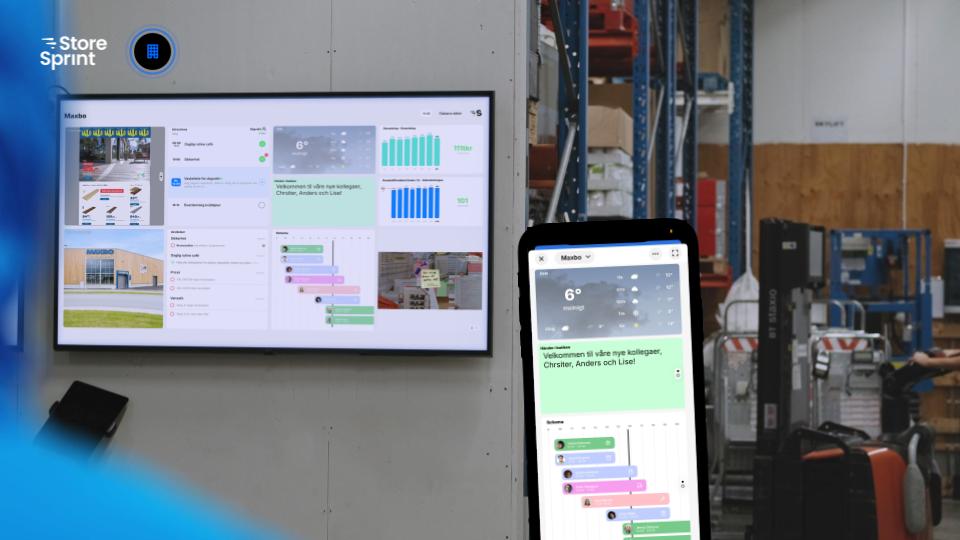
HQ StoreCast makes it easy to manage digital dashboards across your retail chain with shared templates for content and layout. Choose what’s managed centrally and what stores can customize locally, ensuring consistent communication, a unified store experience, and more efficient daily store operations by keeping teams aligned on priorities and important information.
When is HQ StoreCast useful?
Consistent store experience: Ensure a consistent layout and clear communication across all stores.
Central communication: Highlight important HQ updates, campaigns, and priorities in dedicated areas.
KPIs and performance tracking: Display sales, results, and shared goals to drive engagement and motivation.
Create a central dashboard
As with other central features, such as To-dos and Signals, the first step is to select the Workspace where you want to publish your central dashboard.
Select the relevant Workspace.
Navigate to HQ StoreCast → Create.
Enter a name for your dashboard.
⚠️ Note: The dashboard name will also be visible to stores at the local level.
Precis som för andra centrala funktioner, exempelvis Att göra och Signaler, börjar du med att välja det Workspace där du vill publicera din centrala styrtavla.
Välj önskat Workspace.
Navigera till HQ StoreCast → Skapa.
Ange ett namn för din styrtavla.
⚠️ Observera: Namnet på styrtavlan kommer även att vara synligt för butikerna lokalt.
Create a central dashboard
As with other central features, such as To-dos and Signals, the first step is to select the Workspace where you want to publish your central dashboard.
Select the relevant Workspace.
Navigate to HQ StoreCast → Create.
Enter a name for your dashboard.
⚠️ Note: The dashboard name will also be visible to stores at the local level.
Precis som för andra centrala funktioner, exempelvis Att göra och Signaler, börjar du med att välja det Workspace där du vill publicera din centrala styrtavla.
Välj önskat Workspace.
Navigera till HQ StoreCast → Skapa.
Ange ett namn för din styrtavla.
⚠️ Observera: Namnet på styrtavlan kommer även att vara synligt för butikerna lokalt.
Build Your HQ StoreCast Template
⚠️Assign a widget to every area in the HQ StoreCast template, including those managed locally. Without a widget, the area will remain empty
1. Add Widgets
Click "+" in the desired area of the template to add a widget.
2. Select Widgets and Content Management
Centrally Managed: HQ controls both widget placement and content.
Locally Managed: HQ defines the widget type and placement, while each store manages the content.
Want to learn more about the available widgets and their features? Further down in this section, you'll find an overview to help you choose the right widgets.
3. Select Receivers
Select all or specific recipients to publish the HQ dashboard to. The dashboard will be saved as a draft in the workspace and will only become visible locally once you click “Publish”.
Available Widgets:
To-dos: Displays the store's local To-do list.
Team Schedule: Displays the selected team's schedule. Select a team locally or centrally via Receivers. Watch the video below to see how to select which team's schedule to display.
Calendar: Displays a calendar selected locally or centrally via Receivers.
Lineup: Displays the lineup for teams selected locally.
Signals: Displays HQ Signals on the dashboard.
Note: An area where stores can add their own text or upload images locally.
Weather: Automatically displays local weather based on the address in the device settings, or can be adjusted locally.
Workspace Files: Upload or choose files from the central Knowledge Base.
Unit Files: locally uploaded files per unit. Select Unit for local file selection or Workspace for central file selection via Receivers.
Store Zone: A dedicated area where stores can freely add their own widgets and content.
Integrations: Interested in displaying data from your existing systems on your dashboard? Reach out to your Customer Success Manager, and we'll be happy to explore!
Watch the video below to see how you can centrally manage widgets such as team schedules, calendars, and files for each unit under "Receivers".
⚠️ Lägg till en widget i varje område på HQ StoreCast-mallen, även de som hanteras lokalt. Utan en widget förblir området tomt och kan inte anpassas lokalt av butiken.
1. Lägg till widgets
Klicka på "+" på önskad plats i mallen för att lägga till en widget.
2. Välj widgets och hur innehållet ska hanteras
Centralt styrt: HQ bestämmer både widgetens placering och innehåll.
Lokalt hanterat: HQ bestämmer widgetens typ och placering, medan respektive butik hanterar innehållet.
Vill du veta mer om de olika widgetsen och deras funktioner? Längre ner i avsnittet hittar du en översikt som hjälper dig att välja rätt widgets.
3. Välj mottagare
Välj alla eller utvalda mottagare som HQ-styrtavlan ska publiceras till. Tavlan sparas som ett utkast i workspacet och blir synlig lokalt först när ni klickar på ”Publicera”.
Tillgängliga widgets:
Att göra: Visar butikens lokala Att göra-lista.
Körschema: Visar valt teams körschema. Team väljs lokalt eller centralt via Mottagare. Se video nedan hur ni väljer vilket teams körschema som ska visas.
Kalender: Visar en kalender som väljs lokalt eller centralt via Mottagare.
Laguppställning: Visar laguppställningen för team som väljs lokalt.
Signaler: Visar HQ Signaler på styrtavlan.
Fritext ruta: En ruta där butiken kan skriva fritext eller ladda upp bilder lokalt.
Väder: Visar automatiskt lokalt väder utifrån adressen i enhetens inställningar, alternativt kan platsen anpassas lokalt.
Workspace-filer: Ladda upp eller publicera filer från den centrala Kunskapsbanken.
Enhetsfiler: Lokalt uppladdade filer eller en fil från enhetens lokala kunskapsbank. Välj Unit för fritt lokalt filval eller Workspace för centralt filval via Mottagare.
Store Zone: En dedikerad yta där butikerna fritt kan lägga till egna widgets och innehåll.
Integrationer: Vill ni visa data från era befintliga system på styrtavlan? Kontakta gärna er kundansvariga så utforskar vi möjligheterna tillsammans!
Se videon nedan för hur du centralt kan anpassa widgets som körschema, kalender och filer per enhet under "Mottagare".
Build Your HQ StoreCast Template
⚠️Assign a widget to every area in the HQ StoreCast template, including those managed locally. Without a widget, the area will remain empty
1. Add Widgets
Click "+" in the desired area of the template to add a widget.
2. Select Widgets and Content Management
Centrally Managed: HQ controls both widget placement and content.
Locally Managed: HQ defines the widget type and placement, while each store manages the content.
Want to learn more about the available widgets and their features? Further down in this section, you'll find an overview to help you choose the right widgets.
3. Select Receivers
Select all or specific recipients to publish the HQ dashboard to. The dashboard will be saved as a draft in the workspace and will only become visible locally once you click “Publish”.
Available Widgets:
To-dos: Displays the store's local To-do list.
Team Schedule: Displays the selected team's schedule. Select a team locally or centrally via Receivers. Watch the video below to see how to select which team's schedule to display.
Calendar: Displays a calendar selected locally or centrally via Receivers.
Lineup: Displays the lineup for teams selected locally.
Signals: Displays HQ Signals on the dashboard.
Note: An area where stores can add their own text or upload images locally.
Weather: Automatically displays local weather based on the address in the device settings, or can be adjusted locally.
Workspace Files: Upload or choose files from the central Knowledge Base.
Unit Files: locally uploaded files per unit. Select Unit for local file selection or Workspace for central file selection via Receivers.
Store Zone: A dedicated area where stores can freely add their own widgets and content.
Integrations: Interested in displaying data from your existing systems on your dashboard? Reach out to your Customer Success Manager, and we'll be happy to explore!
Watch the video below to see how you can centrally manage widgets such as team schedules, calendars, and files for each unit under "Receivers".
⚠️ Lägg till en widget i varje område på HQ StoreCast-mallen, även de som hanteras lokalt. Utan en widget förblir området tomt och kan inte anpassas lokalt av butiken.
1. Lägg till widgets
Klicka på "+" på önskad plats i mallen för att lägga till en widget.
2. Välj widgets och hur innehållet ska hanteras
Centralt styrt: HQ bestämmer både widgetens placering och innehåll.
Lokalt hanterat: HQ bestämmer widgetens typ och placering, medan respektive butik hanterar innehållet.
Vill du veta mer om de olika widgetsen och deras funktioner? Längre ner i avsnittet hittar du en översikt som hjälper dig att välja rätt widgets.
3. Välj mottagare
Välj alla eller utvalda mottagare som HQ-styrtavlan ska publiceras till. Tavlan sparas som ett utkast i workspacet och blir synlig lokalt först när ni klickar på ”Publicera”.
Tillgängliga widgets:
Att göra: Visar butikens lokala Att göra-lista.
Körschema: Visar valt teams körschema. Team väljs lokalt eller centralt via Mottagare. Se video nedan hur ni väljer vilket teams körschema som ska visas.
Kalender: Visar en kalender som väljs lokalt eller centralt via Mottagare.
Laguppställning: Visar laguppställningen för team som väljs lokalt.
Signaler: Visar HQ Signaler på styrtavlan.
Fritext ruta: En ruta där butiken kan skriva fritext eller ladda upp bilder lokalt.
Väder: Visar automatiskt lokalt väder utifrån adressen i enhetens inställningar, alternativt kan platsen anpassas lokalt.
Workspace-filer: Ladda upp eller publicera filer från den centrala Kunskapsbanken.
Enhetsfiler: Lokalt uppladdade filer eller en fil från enhetens lokala kunskapsbank. Välj Unit för fritt lokalt filval eller Workspace för centralt filval via Mottagare.
Store Zone: En dedikerad yta där butikerna fritt kan lägga till egna widgets och innehåll.
Integrationer: Vill ni visa data från era befintliga system på styrtavlan? Kontakta gärna er kundansvariga så utforskar vi möjligheterna tillsammans!
Se videon nedan för hur du centralt kan anpassa widgets som körschema, kalender och filer per enhet under "Mottagare".
Delete an HQ StoreCast
To delete an HQ StoreCast, you must first remove all recipients. Once all recipients have been removed, a three-dot menu will appear in the bottom-left corner, where you can select “Delete”.
För att radera en HQ StoreCast behöver du först ta bort alla mottagare. När samtliga mottagare har tagits bort visas en meny med tre prickar längst ner till vänster, där du kan välja ”Radera”.
Delete an HQ StoreCast
To delete an HQ StoreCast, you must first remove all recipients. Once all recipients have been removed, a three-dot menu will appear in the bottom-left corner, where you can select “Delete”.
För att radera en HQ StoreCast behöver du först ta bort alla mottagare. När samtliga mottagare har tagits bort visas en meny med tre prickar längst ner till vänster, där du kan välja ”Radera”.